
No apps, no codes, no fuss – just tap your YubiKey and you’re safely in.
Our most popular YubiKey option
Government grade security
The gold standard in biometric security
Exceptional security made simple
Cryptographic protection for your servers
Trusted NHS remote access and support that gives you the freedom to work where suits you, without compromising on security.
Support NHS Computers Securely.
Access Your Computer Securely.
Trusted IT and communications support from our family to yours – always friendly, always on hand.
Find the best security first IT support for your growing business.
Find the right communications support for your business from phones to cabling.
An Away from My Desk Technical Guide
If someone is using the PC at the surgery, you won’t be able to connect to that PC.
This is because our service shows you a live image of the screen at the surgery and so anything you do through the remote session will happen on the actual work PC, and vice versa.
If you try to connect to the work PC and someone else is using it, it will either:
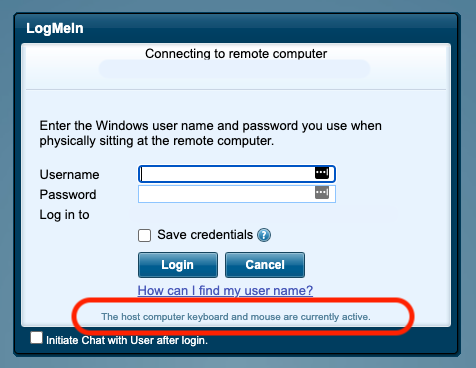
If you experience any of the above, you should find out if someone is on the surgery PC (either remotely or physically at the PC). You can check this remotely when you get to the Windows stage. Here it will have a message at the bottom, and it will say one of the following (example shown below):
‘the host computer keyboard and mouse are currently active’: This means someone is currently using the PC, either remotely or physically at the PC.
‘the host computer keyboard and mouse have been inactive for ***minutes/hours’: This means someone was using the PC that specified amount of time ago, either remotely or physically at the PC.
‘there is no user at the target PC’: This means that no one is using the PC, either remotely or physically at the PC.

If the system is saying someone is using the PC but you are sure they aren’t, there can be a couple of explanations:
In this case, always follow the below steps:
If you are not able to resolve the issue you are experiencing from this guide or would just like some guidance, please contact our tech team.
Phone us on 0117 325 0060 or click here to send us a message.