No apps, no codes, no fuss – just tap your YubiKey and you’re safely in.
Our most popular YubiKey option
Government grade security
The gold standard in biometric security
Exceptional security made simple
Cryptographic protection for your servers
Trusted NHS remote access and support that gives you the freedom to work where suits you, without compromising on security.
Support NHS Computers Securely.
Access Your Computer Securely.
Trusted IT and communications support from our family to yours – always friendly, always on hand.
Find the best security first IT support for your growing business.
Find the right communications support for your business from phones to cabling.
An Away from My Desk Technical Guide
Our service allows you to print documents from your work PC, to your remote location. This means when you are working from home, you can connect your work PC to your home printer through the remote session.
To be able to print at home, you will need to upgrade to our PLUS version at just £12+VAT per PC, Per year. If you would like to upgrade, please contact our technical support team today.
Remote printing can seem a little complicated, but usually errors with this can be resolved with a simple fix. Below are some steps to follow to try and resolve the issue.
The first step to try whenever you are having issues within the remote session is to restart the work PC. You should restart your work PC every day as this helps prevent any issues in the remote session. In order for the issue to be resolved you must restart the PC by clicking ‘Start’ > ‘Restart’.
The next step to try, is to check that your home computer is connected to the printer you wish to print from. Please check the printer is switched on and connected to your home computer.
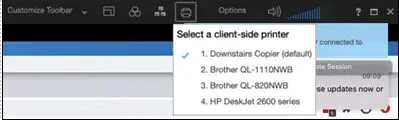
If you are having problems printing, please check that your remote session has the correct printer selected. You can do this by selecting the printer icon, then selecting the correct printer from the list. This needs to be your printer at home.

The next step to try is restarting the print spoolers. To do this you will need to complete the following steps on the work PC.
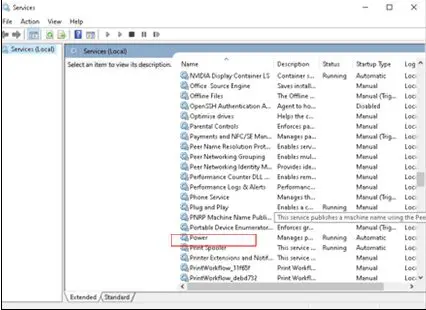
Search for ‘services’ in the toolbar at the bottom of the screen.
Open the ‘services’ application.
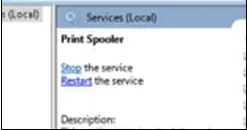
On the right-hand side of the application, scroll down until you see ‘Printer Spooler’, select this.

Restart the ‘Printer Spooler’ by selecting ‘Restart’ on the left-hand side

The final thing we can try is to restart the print drivers on the work PC. To do this you will need to:
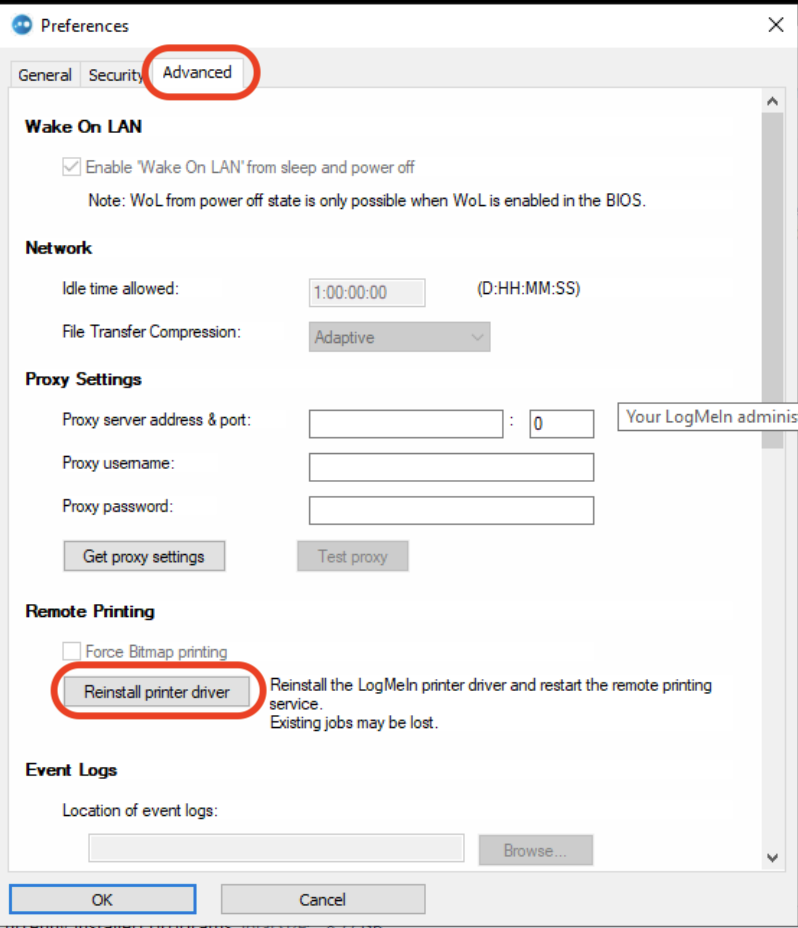
Open LogMeIn Control Panel on the work computer. You can do this by searching ‘LogMeIn Control Panel’.
Click ‘Options’ and then ‘Preferences’

Click on the ‘Advanced’ tab and then click on ‘Reinstall Printer Driver’, then click ‘OK’.

Once you have completed all of the above steps, please restart your work PC and try printing.
If you are not able to resolve the issue you are experiencing from this guide or would just like some guidance, please contact our tech team.
Phone us on 0117 325 0060 or click here to send us a message.