No apps, no codes, no fuss – just tap your YubiKey and you’re safely in.
Our most popular YubiKey option
Government grade security
The gold standard in biometric security
Exceptional security made simple
Cryptographic protection for your servers
Trusted NHS remote access and support that gives you the freedom to work where suits you, without compromising on security.
Support NHS Computers Securely.
Access Your Computer Securely.
Trusted IT and communications support from our family to yours – always friendly, always on hand.
Find the best security first IT support for your growing business.
Find the right communications support for your business from phones to cabling.

An Away from My Desk Technical Guide
If your work PC has two monitors, you will be able to use both of these monitors via Away From My Desk.
If you have only one monitor at home, you will need to switch between the two screens at work, but if you have two screens at home you will be able to view both screens, as you would at work.
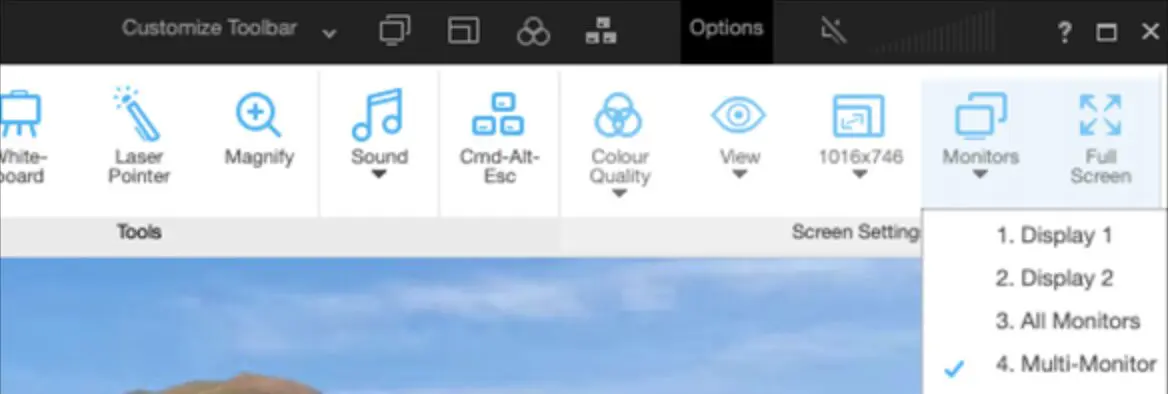
When you are in the remote session, simply click the monitor icon on the customise toolbar (shown below). This will switch you over to the other monitor.

Alternatively, if you are using a Windows PC, you can press the below keys to switch monitors:
Left CTRL key
Left Windows key
Right/Left Arrow key
If you have two monitors at home and at work, you can view the two monitors simultaneously, as you would at work. To do this, simply select options on the toolbar, then ‘Monitors’, then ‘Multi-Monitor’ – as shown below.

This will open two windows; one per monitor. You will just need to drag one over to your second home monitor.
Unfortunately, to use two monitors through Away From My Desk you must have two monitors connected to your work PC.
If you have two screens at work but you aren’t given the option to switch monitors, please follow the below steps.
Please ensure the screen is switched on and connected to the work PC.
Select Start > Settings > System > Display.
The PC should automatically detect your monitors and show your desktop. If you don’t see the monitors, select Detect.
In the Multiple displays section, select an option from the list to determine how your desktop will display across your screens.
Once you’ve selected what you see on your displays, select Keep changes.
Once you have ensured both screens are connected, switched on and configured, please restart the work PC and try accessing via Away From My Desk again.
If you are not able to resolve the issue you are experiencing from this guide or would just like some guidance, please contact our tech team.
Phone us on 0117 325 0060 or click here to send us a message.